
Contact Status Management
It is critical that your contacts are continuously monitored and managed at the correct stage/status to avoid a loss of credibility or trust. Because campaigns are designed for a specific status, your contact may receive something they do not need or, worse, fail to receive something they do need, due to an incorrect status and campaign. Because a contact’s status determines which campaign runs for them, it is critical to update that status as soon as you know it.
Changing the Status of a Single Contact
When you learn that a contact’s status needs updating, do it as soon as possible in BoldTrail.
- At the top left side of the BoldTrail dashboard in the general search field, enter the contact’s name.
- Click on the name when it displays.

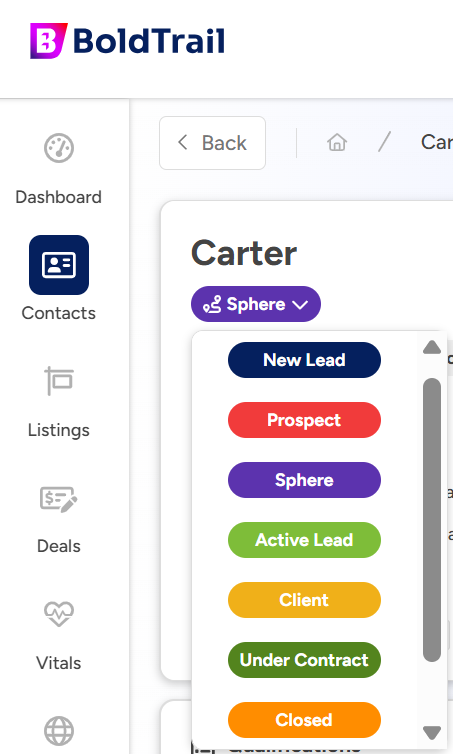
3. When the contact’s profile page loads, view the current status, and select the new status for that contact.
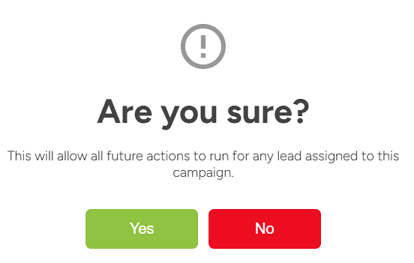
4. Select “Yes” when the pop-up window asks for confirmation.
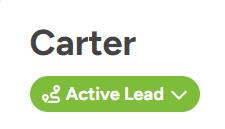
5. The new status displays which auto-triggers a new campaign for the contact.
Changing the Status of Multiple Contacts
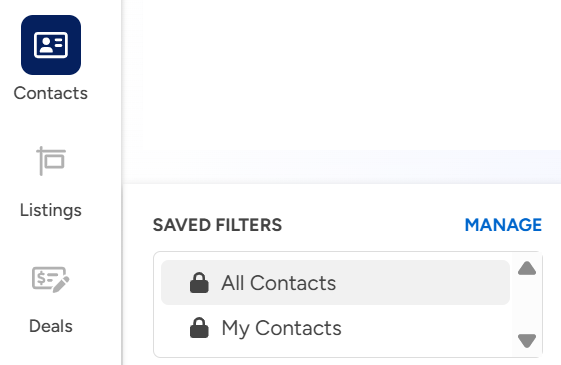
- On the left menu, select “Contacts” and then, “All Contacts” or “My Contacts.”
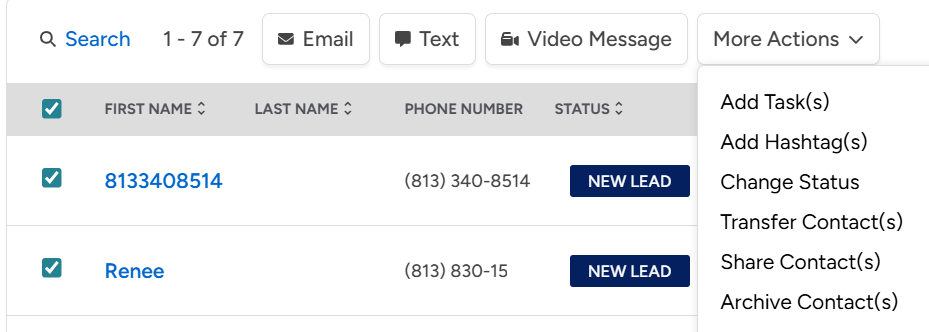
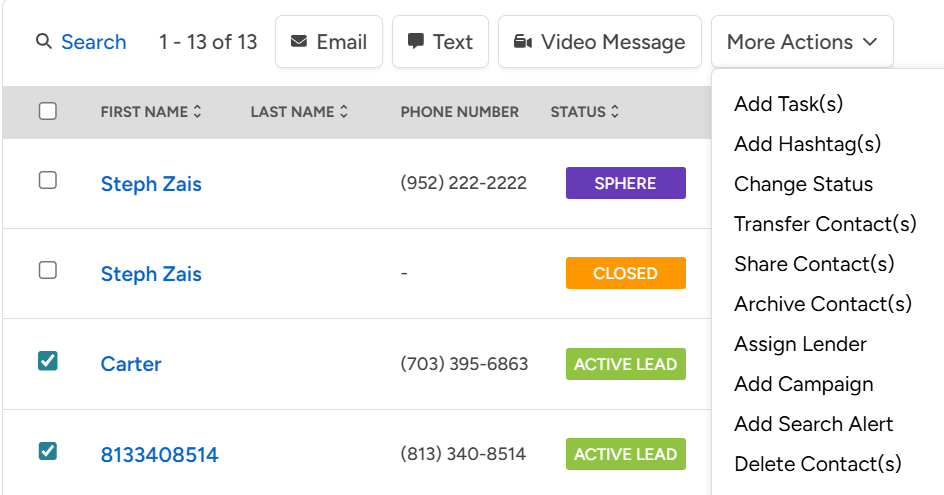
2. Find the contacts to change status and place a check mark. Using the “More Actions” column, select “Change Status.”
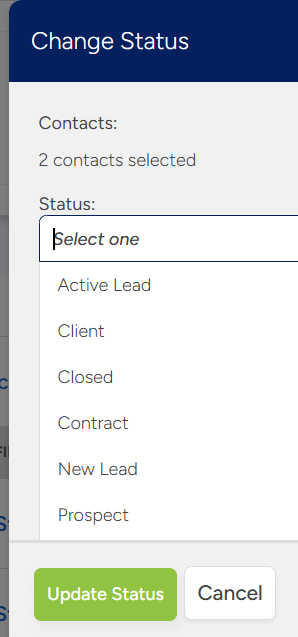
3. In “Change Status” select the new status, and then, “Update Status.”
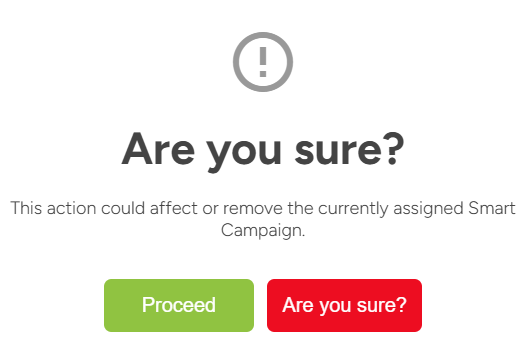
4. For the confirmation, select “Proceed.” The status is changed for all contacts with a checkmark, and a new campaign is triggered for them.
5. If multiple contacts in the same status need to change, filter by highlighting their current status.
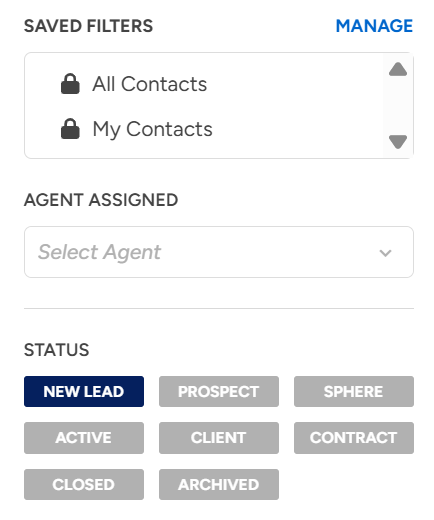
6. Click the checkmark at the top to select all, or individually check those to change, and select “Change Status.” Repeat steps 3 & 4 above to change all those contacts to the new status and new campaign.