
Unsubscribe
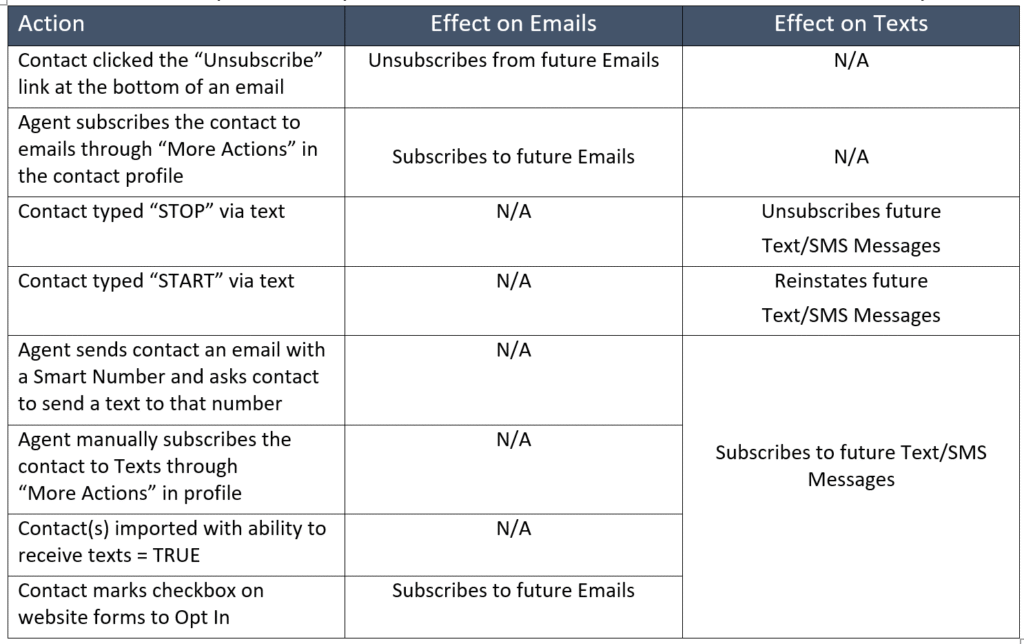
Contacts can unsubscribe from marketing emails by clicking an unsubscribe link. This typically affects email campaigns and mass emails. These rely on compliant communication. When a contact unsubscribes or opts out, respect their choice immediately to stay compliant with regulations (CAN-SPAM, TCPA, etc.) Therefore, campaigns will be sent only to contacts who have not unsubscribed from any of your communication methods, such as email or text. To find out whether a contact has unsubscribed from emails or texts, follow the steps below.
- Log in to your BoldTrail account.
- Click on the icon shown below to open your list of contacts.
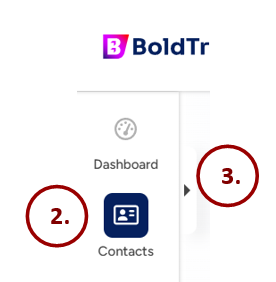
3. If the “Saved Filters” sidebar does not display on the left side of the page, click on the small black arrow to bring it into view.
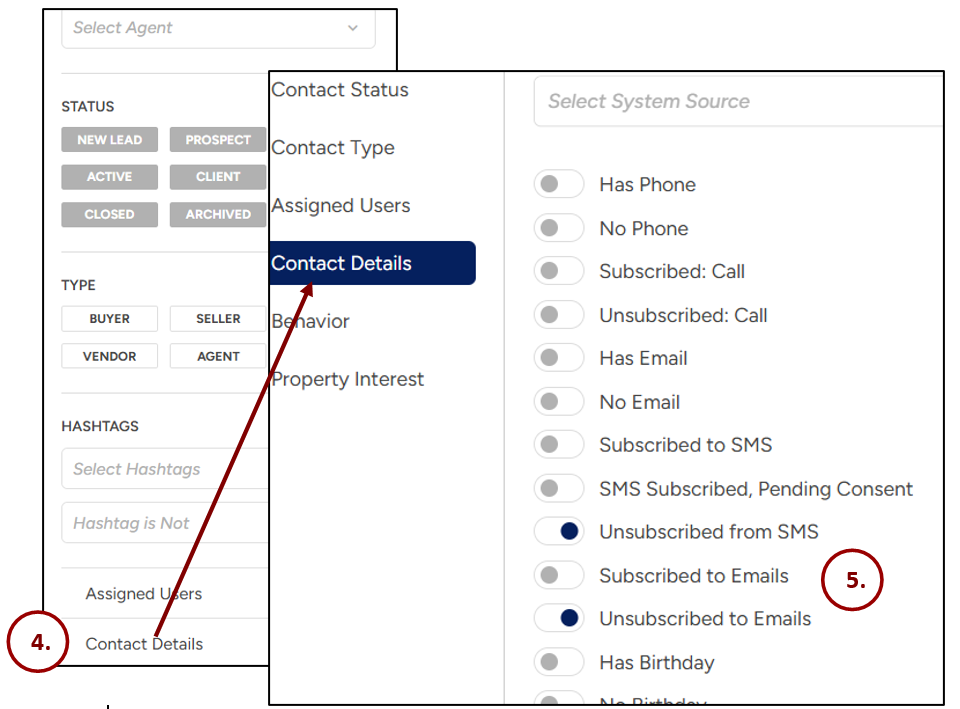
4. Scroll down in the “Filters” list, then click on the “Contact Details” link to open a new window as shown.
5. You will be able to see if the contact is subscribed to emails and/or SMS (text) messages.
How to Change Contact Subscription Options
Should any one of your contacts wish to receive articles from these campaigns but is currently unsubscribed from either emails or text messages, you can change their settings so that the emails and/or texts may resume. There are two ways to change a contact’s subscription options.
1. Contact Details: Using the method described above to view their subscription options, simply slide the button to the right next to “Subscribed to SMS” or “Subscribed to Emails”.
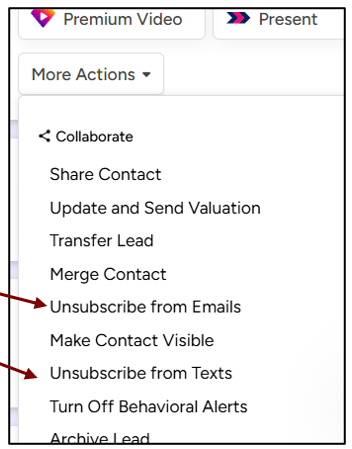
2. More Actions: To change your contact’s subscription options via the “More Actions” route, search for the contact, then click on the contact’s name to bring up their profile page. On the right side of their profile, click the “More Actions” dropdown.
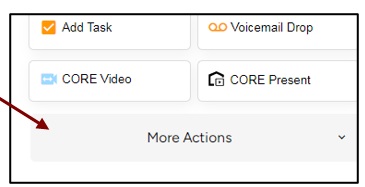
3. Then click on the Subscribe/Unsubscribe to Texts or Emails as shown. The system may prompt you to confirm, but there is no need to click an additional button after that.
How Contacts May Receive Emails, Text/SMS Messages