
Create Temporary Password – FUB
Create a Temporary Password
To successfully implement your ordered product(s) in your FUB account, a temporary password is required. This document will guide you through changing your password and provide the temporary password to use. Once the changes to your account are complete, topCOREagent.com will notify you to change your password again. In both cases, these same instructions apply.
| NOTE – You are NOT sharing your own password with topCOREagent.com. Instead, topCOREagent.com is sharing a temporary password with you! |
While there are a few steps involved, the process is simple.
- Log in to your FUB account.
- Go to settings and request a password reset.
- Verify the code with your phone.
- Enter temporary password (provided below).
Let’s Begin!
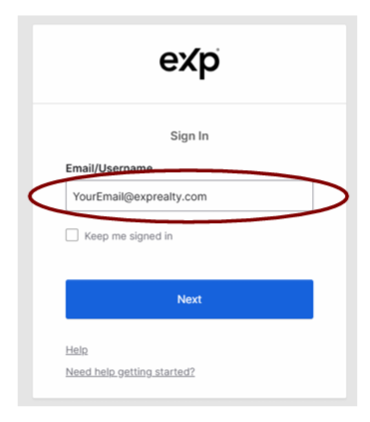
- Use your browser and go to the My eXp page at https://my.eXpRealty.com/login. Enter your email address and click “Next”.
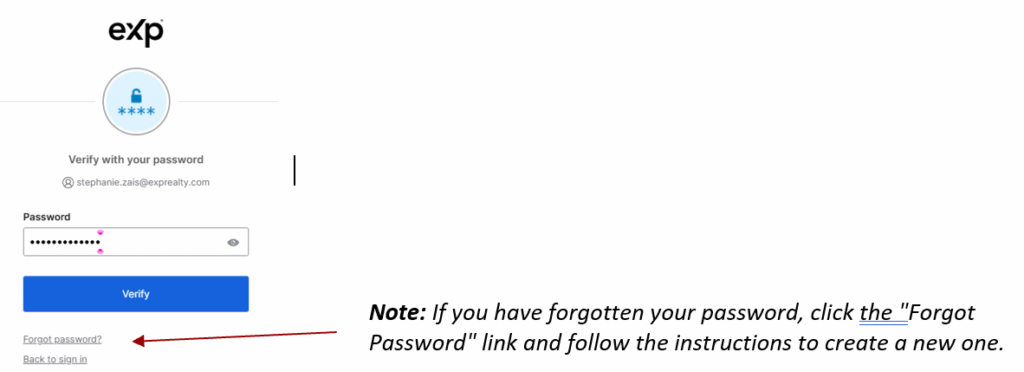
2. On the next screen, enter your password, then click “Verify”.
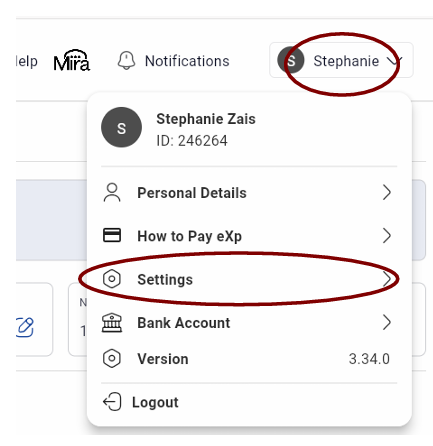
3. Once logged in to your eXp account, click your name in the upper right corner, then choose “Settings”.
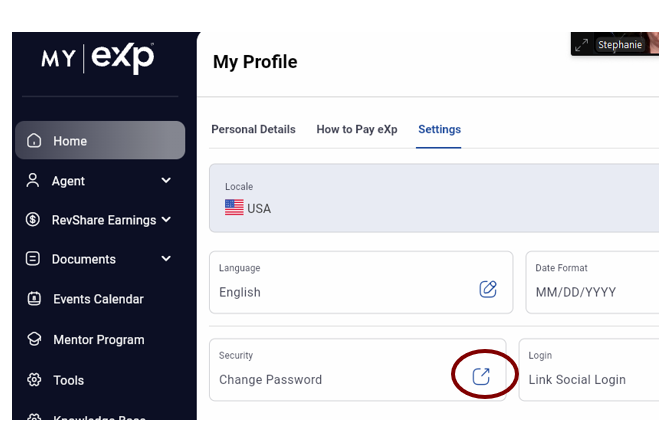
4. On the new page that loads, click the icon in the “Security / Change Password” area.
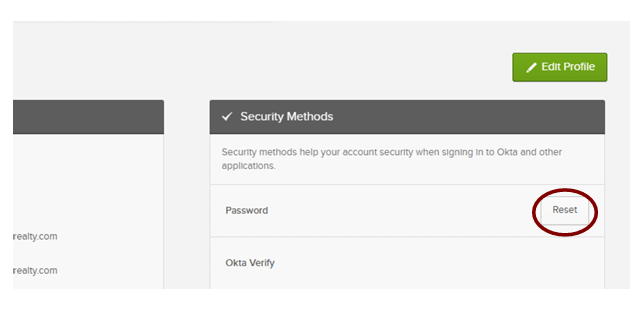
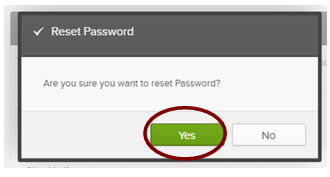
5. A new page will appear. Click the “Reset” button in the Password section. Then, confirm the reset.
6. Click the “Receive a code via SMS” button.
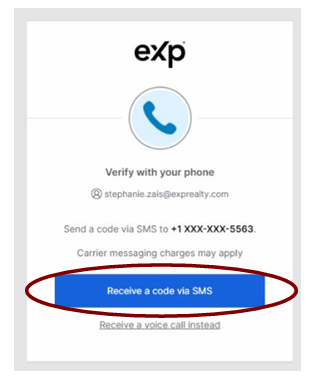
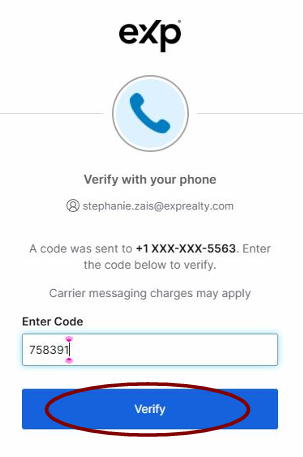
7. Check your phone for a 6-digit code, then enter that code and click “Verify.”
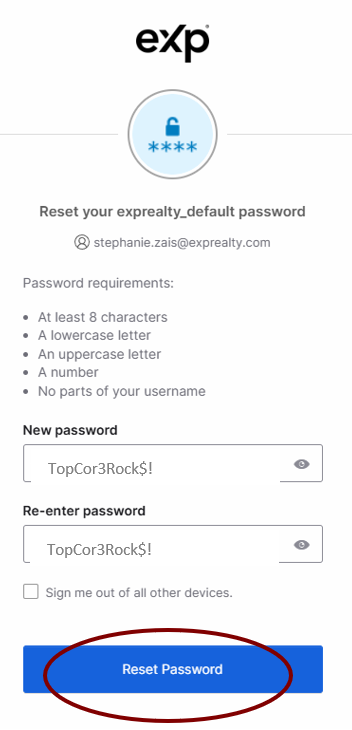
8. FINALLY – put the temporary password into both sections as shown to the right and click “Reset Password”. The temporary password is TopCor3Rock$!
This is your new temporary password until your product(s) are live. Continue to use this password when you log in to BoldTrail until topCOREagent.com has completed your order. Don’t forget to let us know your password has been temporarily changed by clicking on the “Change BoldTrail” password in topCOREagent.com > My Account>Action Items!