

Holiday Campaigns
CORE campaigns come with the seven current year’s holidays:
- Valentine’s Day
- Spring Greeting
- Memorial Day
- Independence Day
- Labor Day
- Thanksgiving
- Holiday Greeting
Adding Next Year’s Campaigns
Each year at the end of December, we ask you to update your holiday campaigns for the next year. We will send you a notice with instructions on how to quickly and easily copy and paste a special token to generate all your holidays for the following year. When notified in late December of each year, use these Instructions to copy and paste the new tokens for both the email and text campaign so the next year’s holidays will arrive on the specific day for that year:
Step 1 – Open Smart Campaigns to Add the Two New Holiday Campaigns
- Log in to your BoldTrail account. In the left menu, find “Marketing.” If it doesn’t display, scroll down to “More” to click on it.
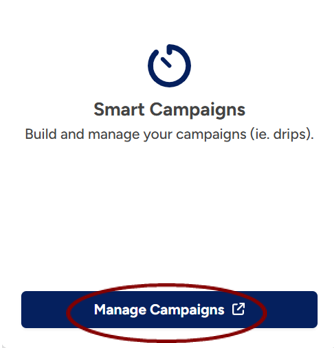
2. In “Marketing Tools & Features”, click on the “Smart Campaigns” box.

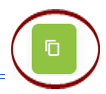
3. Now you will see “My Campaigns.” To the far right, notice the two green boxes. Click on the smaller one to the right.

4. A field opens for you to insert the token code for next year’s email holiday campaign.

5. Copy the token for the email campaign into that open field, which is: ________________________ and press “Enter.”
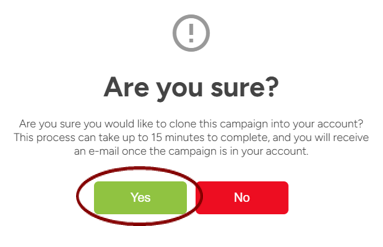
6. Confirm you want to add this email holiday campaign by selecting “Yes.”
7. The email campaign is now entered into your campaign.
8. Repeat steps 3 and 4 for the text campaign by clicking on copy button to open the field to insert the token for the text campaign, which is ____________________ and press “Enter.”
Step 2 – Deactivate the Previous Campaigns and Activate the New Ones
- While still in “My Campaigns,” type “Holiday” in the search field and hit “Enter” to display all the holiday campaigns. To the right is where campaigns may be activated and deactivated by moving the button.
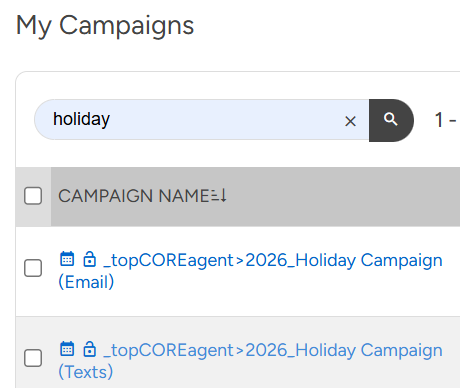
- Now, deactivate both previous years’ campaigns by moving the button to the left, and activate the new campaigns by moving both buttons to the right so they show color. After each change, confirm you want it deactivated or activated.
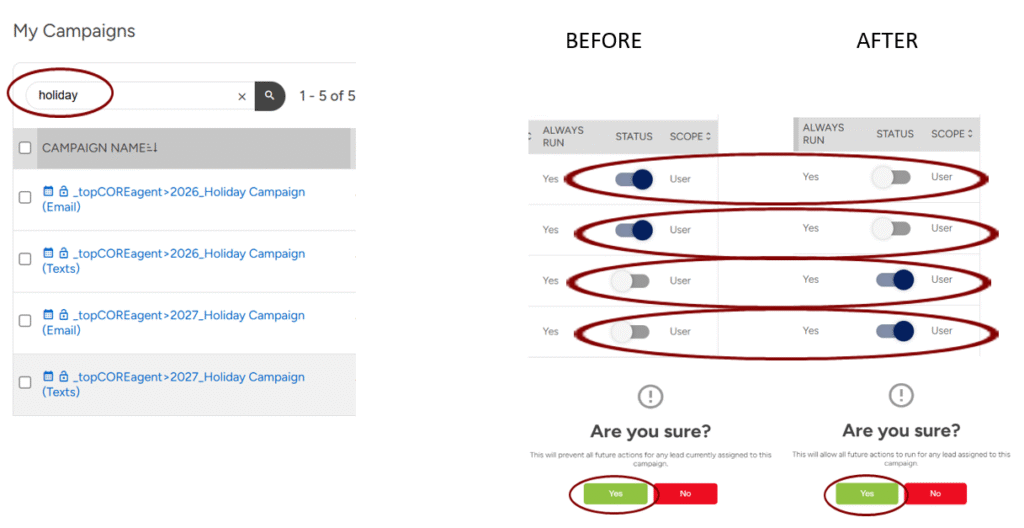
3. The actions are complete, and the coming year’s Holiday campaigns will go to all your contacts throughout the year!