
Social Media Sharing
Anyone may share your branded articles on their social media account(s) by clicking any of the social media buttons on the right side of the page (or at the bottom if viewing on a mobile device). When shared and clicked by social media viewers, not only will the article appear, but your branded banner will as well. In addition to the six social media options, there are three additional buttons – copy, print, and email – to use as needed.
To share, simply click any of the icons for which you have an account, add/edit an appropriate comment, and then post to share it with others.

Using Social Media Buttons to Post Articles
1. Facebook Post
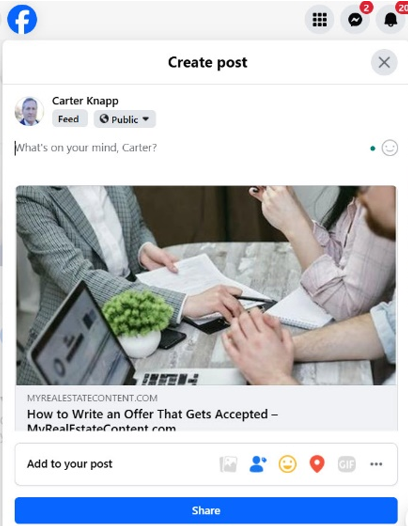
When you select the Facebook icon, the article photo, headline, and link to the full article are displayed. Just add a compelling comment in the “What’s on your mind” area above the photo and “Post.”
2. X Post
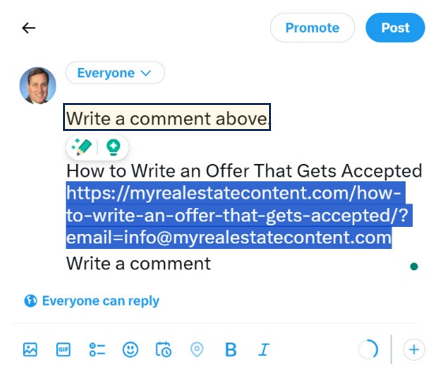
For an X post, the headline and article link are displayed. Add a comment just before the article headline, add a line between, and “Post.”
3. LinkedIn Post

Select the LinkedIn icon to view the article photo, the headline, and the article link. Add a compelling comment in the “What do you want to talk about?” and “Post.
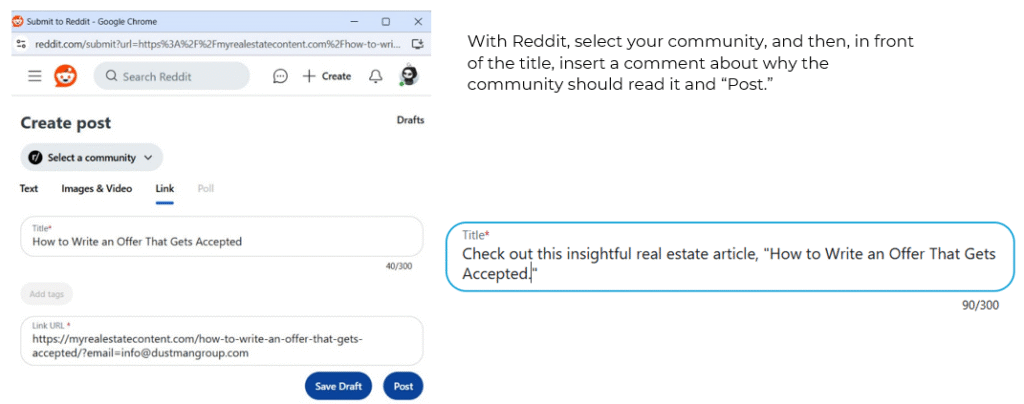
4. Reddit Post
5. WhatsApp Message
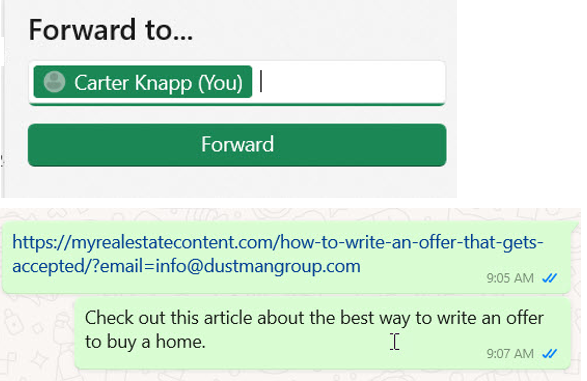
After selecting the WhatsApp icon, select the person in your contacts, then tap forward. It sends the link. It may be good to follow up immediately with a new chat to give context to the link just sent.
6. Pinterest Post
7 . Copy
Click the copy button to view “Copied” and paste anywhere it’s needed.
8. Email
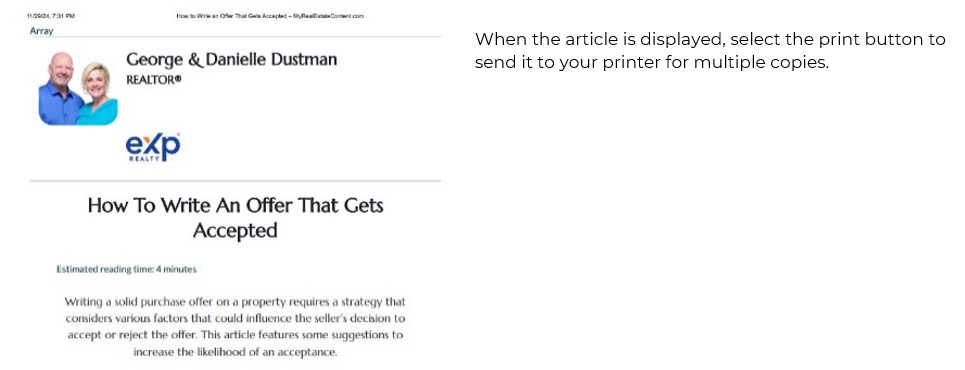
9. Print